Field notes
Rescuing photos and videos from a dying Mac
· 7 minute read
The quickest, and perhaps most reliable, way to get your photos out of a dying Mac is NOT through the Photos app. The Photos app is slow and cumbersome, and it gives no progress indication while exporting your photos.
The data the Photos app reads and writes lives in a folder (which looks like a file) with a well-defined structure, backed by an SQLite database. The photos and videos themselves are stored in a set of folders inside this root folder. We will get into the internals in a bit.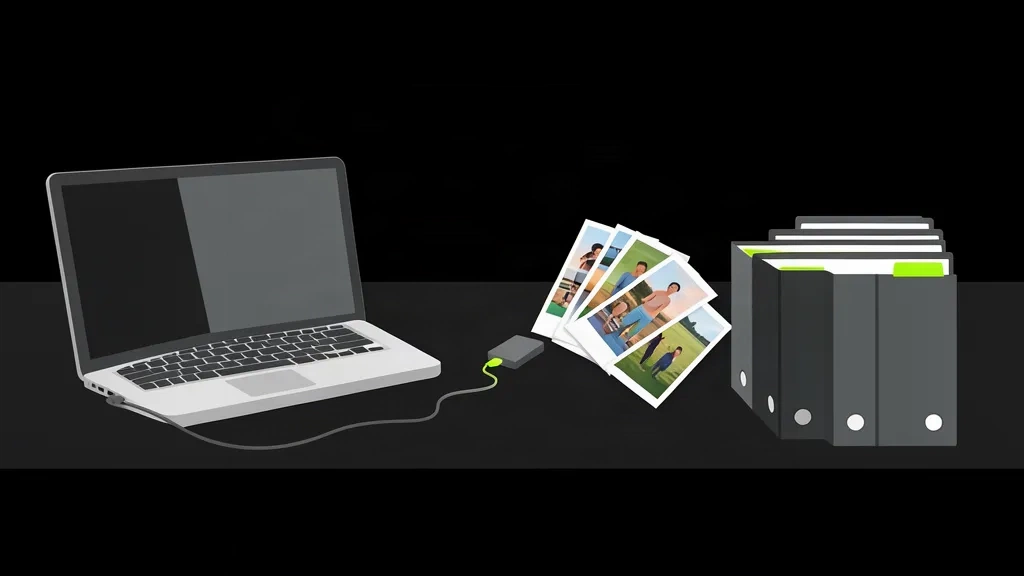
What happened
The failing Mac had some issue that made it extremely slow. Each time we tried to open the Photos app, it took minutes to even show the thumbnails. We tried to export the photos and videos using the Photos app, but that was excruciatingly slow, had no progress indicator, and if anything failed, it had to be done again. Not to mention that the Photos app was processing the photos and videos in some way that made the laptop overheat and the fans go brrr, which made the laptop switch off. We tried this for many days, hoping, without any success.
What worked
Finally, with the help of Claude Fable 5.1 (extra high thinking), we analysed the problem. It suggested that we copy the photoslibrary out of the dying machine as soon as possible and deal with decoding the photos on a healthy Mac. The process went as follows: The whole rescue. The slow machine does one sequential copy and nothing else.
First, find out whether the photos are on the disk or in iCloud. If Optimise Mac Storage is on (Photos, Settings, iCloud), the full-size originals live in iCloud and the Mac only holds thumbnails. If that's the case, there's no need to deal with the dying Mac: sign in on another Mac and download the photos there.
Boot the dying Mac into Safe Mode by holding Shift while it starts. This gives a bare-bones environment for the rest of the rescue.
Copy the whole photoslibrary to an external SSD. We connected an SSD with a volume formatted as APFS, then used rsync to copy reliably. Using Finder is a bad idea here, because an error on a single file fails the whole copy. rsync keeps track of what has been copied and what is left, and skips the errors. Since this is a long-running operation, we also used caffeinate to keep the Mac awake during the copy. The command looks like this:
caffeinate -i rsync -avh --partial --progress ~/Pictures/"Photos Library.photoslibrary" /Volumes/RescueSSD/
It took about 37 minutes to copy around 85 GB of data.
Once the photoslibrary (which is actually a folder with many subfolders) was fully on the SSD, we ran the command a couple more times to make sure. The subsequent runs took only seconds. Now we were ready to decode the photos out of the photoslibrary.
One thing Claude Fable 5.1 suggested: if the dying laptop couldn't boot at all, it could be started in Target Disk Mode by holding T at power on while connected to a healthy Mac with a cable. With this, the dying Mac's disk appears as an external drive on the healthy Mac.
In our case, we connected the SSD with the copy of the photoslibrary to a healthy Mac, and with the help of a small tool Claude Fable 5.1 wrote (the source is on GitHub), we quickly exported the photos and videos out of the photoslibrary into a plain folder structure, organised by year and month, that any computer can read.
For some reason, a photoslibrary from macOS Tahoe can't be opened on an older macOS (Sequoia, in our case). This is presumably because the database structure changes between versions.
Inside the photoslibrary
Here's a deeper dive into the contents of the photoslibrary for the curious ones out there. The contents of the photoslibrary folder are as follows. The package, with the two things that matter picked out: the database and the originals.
originals/
This is where the photos and videos live. Inside it there are 16 folders named 0 to 9 and A to F. The filenames are UUIDs, and the files are sharded by the first character of the filename. This makes it easier to read and write the files.
Apple's Live Photo, the one with the small animation, is actually two files: a photo, and a video whose name ends in _3.mov. Both start with the same UUID.
database/Photos.sqlite
This is a normal SQLite database. It uses write-ahead logging, which means it comes as a set of three files: Photos.sqlite, the -wal log and the -shm index. There are two tables in the database that matter to us.
ZASSET has 135 columns and notably holds the UUID, the shard folder, the filename on disk, the capture date, and flags (trashed, hidden, favourite).
ZADDITIONALASSETATTRIBUTES has 91 columns, joins to ZASSET on the primary key, and holds the original filename, the original size, the time zone, a content hash, the name of the device that imported the photo, and the title. These table names have been the same since Big Sur in 2020. Our query, written for the older layout, ran on the Tahoe database with no changes. Dates are stored as seconds since 1 January 2001, the Core Data epoch. One row, two files on disk, two files in the export with their real name back.
Next to the live database is Photos.sqlite.aside. Photos writes it before repairing a library and keeps it afterwards, so if a repair lost anything, the older metadata is still there.
resources/
This holds what Photos generates from your originals. renders/ has the full-size version of every edited photo. derivatives/ has thumbnails and previews. If you only copy originals, you get each photo as it was shot. The edited version is in renders.
external/
This holds bookmarks to photos that were imported by reference. Those files were never copied into the library, so a copy of the library does not include them.
What the export found
Every file under originals matched a row in the database, and the totals agreed exactly. Three rows had no file on disk, which usually means iCloud never downloaded the original, or the photo was imported by reference. Forty-four pairs of photos had the same filename in the same month but different contents, because phones reuse IMG_ numbers and two devices collided. Twenty-nine files were exact duplicates of another file.
If you write your own exporter, name files after the original filename, and when two photos want the same name, compare their bytes before treating one as a duplicate. Two different photos can be the same size.
Things that will bite you
- Full Disk Access. macOS will not let Terminal read inside a Photos library, or an external drive, until you add it in System Settings, Privacy and Security. Until then every command fails with "Operation not permitted" and nothing more.
- Libraries only move forward. A library from a newer macOS will not open on an older one. Read it directly, or upgrade the second Mac.
- Optimise Mac Storage. If it is on, the originals are in iCloud, and copying the library rescues thumbnails.
- Edits live elsewhere. Originals are the photos as shot. Edited versions are in resources/renders.
- Live Photos and RAW pairs are two files. Keep them together. Everything that shares a UUID belongs to the same photo.
- Never open the library's own database. Copy the three database files somewhere else and open the copy. Opening the live one can change it, and Photos expects those files exactly as it left them.
FAQ
Can I copy the Photos Library to an external drive?
Yes. The library is a folder that Finder shows as a single file. Drag it to a drive formatted as APFS or Mac OS Extended, or use rsync from Terminal. Copy the whole package, because edits and the database live outside the originals folder.
Where are the original photos stored inside the Photos library?
In the originals folder inside the package, split into sixteen folders named 0 to 9 and A to F. Each file is named by its UUID with the real extension. The original filename is in the database.
How do I find a photo's original filename in Photos.sqlite?
Join ZASSET to ZADDITIONALASSETATTRIBUTES on the asset primary key and read ZORIGINALFILENAME. ZASSET.ZFILENAME is the UUID name on disk, and ZDIRECTORY is the shard folder.
Why is Photos export so slow on an old Mac?
Export decodes every image, checks iCloud, writes sidecars and competes with the Photos background processes for the disk. On a failing disk the scattered reads make it slower still. A plain file copy of the originals folder skips all of that.
Will an older Mac open a library from a newer macOS?
No. Photos moves libraries forward only and refuses to open one from a later version. Upgrade the second Mac, or read the database and originals directly.
What if my photos are in iCloud?
Then the Mac only holds what it downloaded. Sign in on a healthy Mac with Download Originals on, or download from icloud.com, and treat the dying Mac as a cache.
PhotoGenie is a free photo cleaner for iPhone. One photo at a time, oldest first, swipe up to toss, drop it on a folder to file. No photo ever leaves your phone.
Download on the App Store